



Add Goumikids to Target Baby Registry: Works in 2026

Instead of manually texting product links to every gift-giver, use Target’s universal registry option in 2026 to add Goumikids baby essentials from their product pages. The link method is the clearest choice because it preserves the exact item, color, and size you selected.
- Add Goumikids to Target baby registry with Target’s universal item option and the exact product link.
- Goumikids baby essentials are best for parents prioritizing practical dressing, diaper changes, and stay-on accessories.
- Use one registry entry for each color and size so gift-givers see the item you chose.
- In 2026, verify the image, title, variant, and destination link before sharing your registry.
Why this matters
A normal Target registry search and an outside product link follow different paths. Searching helps you add items already shown within Target, while the universal item option creates an entry that points gift-givers to another retailer’s product page.
That distinction matters when you want a specific convertible gown, footie, romper, mitt, or boot. A broad entry such as baby gown leaves the color and size unclear. An entry built from the exact product page keeps your choice attached to the registry.
Goumikids baby essentials are best for parents who want functional newborn clothing built around dressing, diaper changes, comfort, and missing socks. The trade-off is extra setup: outside items require careful link checks and separate entries for different variants.
In 2026, treat the registry entry as a signpost. Its job is to show the correct item and send the gift-giver to the correct page without making them guess.
Before you start
- Open your Target baby registry. You need access to edit the registry, not only the public link that guests receive.
- Open the exact product page. Keep one browser tab on Target and a second browser tab on the item you want to add. Confirm the color and size before copying anything.
- Save a clean product image. Target’s universal form can require manual item details. A product-page screenshot gives you a backup if the image does not transfer with the link.
The easy-to-miss problem is variant selection. A link can open the right product family while displaying a different color or size from the one you intended. Check the selected options on the destination page before copying the URL, then check them again after saving the registry entry.
Target controls the registry interface, so labels can differ between desktop and mobile screens in 2026. Look for Add items, followed by the option for an item from another website or a universal item.
Choose the link method or manual method
Both methods create an outside-item entry, but they are not equally useful. Start with the link method whenever Target offers it because the product page remains the source of truth.
| Method | Best for | What you provide | Main advantage | Main limitation |
|---|---|---|---|---|
| Product link | An exact color and size | Product URL and requested item details | Sends the guest to the selected product page | Imported details still need review |
| Manual entry | A screen that does not accept the link directly | Title, image, description, and product URL | Lets you complete missing fields yourself | More room for typing or image errors |
The link method wins for a registry that includes several outside items. Manual entry is the backup when the form does not import enough information to make the choice clear.
Prepare the product entry
Select the exact item
- Decide which type of baby essential belongs on the registry: a convertible gown, footie, romper, mitt, boot, layette gift set, or preemie piece.
- Open the individual product page rather than copying the homepage, a search result, or a collection page.
- Choose the intended color and size on the product page.
- Copy the complete URL from the browser address bar.
- Keep the page open until the Target entry has been saved and checked.
For example, register the specific 24 Hour Convertible Gown Canopy rather than writing convertible gown in a manual description. For accessories, a specific entry such as Stay On 2 Pack Mitts Boulder Birch tells the gift-giver which set you chose.
Expected result: you have one complete product link tied to one clear item, color, and size.
Gather the details Target needs
- Copy the product title exactly as shown on the product page.
- Note the selected color and size in a separate note before switching tabs.
- Save or screenshot the main product image if the registry form asks for an upload.
- Write a short registry note that identifies the intended variant without adding unnecessary claims.
- Keep the original product page available for the final link test.
A useful note is direct: selected in storm gray, newborn size. Avoid replacing the product title with a personal nickname because guests need to recognize the same item after leaving Target.
Product features vary by style and size. Describe only the item shown on the page. Do not copy a feature from one gown, footie, or accessory into the entry for another style.
Expected result: you can complete the universal item form even if Target does not import every field from the URL.
Configure the Target registry entry
Open the universal item form
- Sign in to Target with the account that owns the baby registry.
- Open the registry dashboard and select Add items.
- Choose the option for adding an item from another website or creating a universal item.
- Paste the complete product URL into the link field when that field appears.
- Allow the form to process the page before editing any imported details.
Do not use the in-store barcode scanner for this workflow. The scanner reads a physical barcode, while this process starts with an outside product page.
If the mobile screen does not show a URL field, switch to the manual item option or complete the process in a desktop browser. The objective stays the same: create an entry with the exact title, variant information, image, and destination link.
Expected result: Target displays a draft registry entry that you can review before saving.
Complete the item fields
- Check the Title field against the product page.
- Add the selected color and size to the appropriate variant field or the item note.
- Review the Image and replace it with the saved product image if the imported image is unclear.
- Set the requested quantity based on how many units you want guests to contribute.
- Confirm that the Product URL contains the complete link and has not been shortened or cut off.
- Select Save or the equivalent control that adds the entry to your registry.
Keep the description short. Gift-givers need enough information to confirm the item, not a full product-page summary. The product title, chosen variant, and working link carry most of the decision.
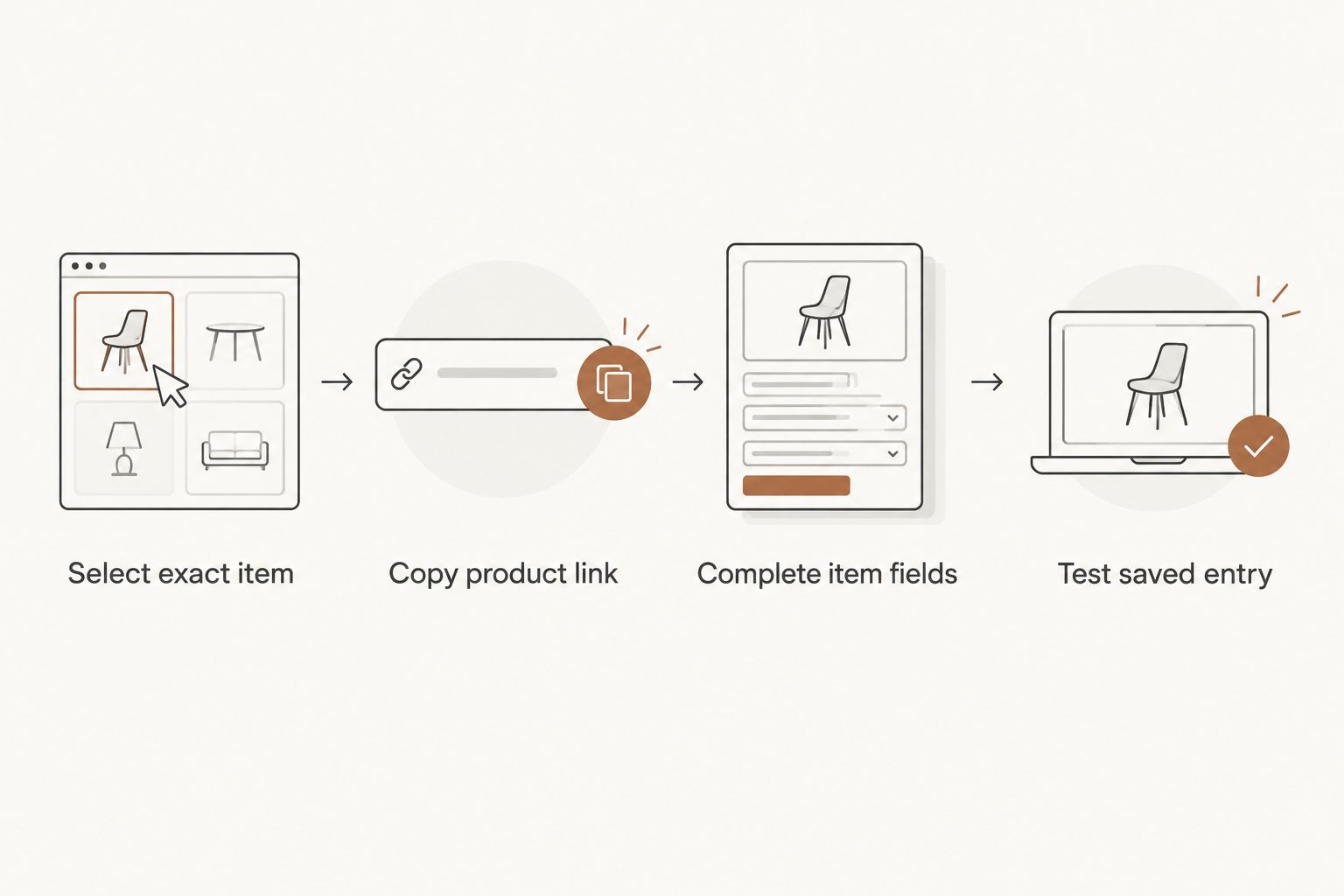
Expected result: the outside item appears in the registry with enough detail for a guest to identify the correct product.
Test the saved entry
- Open the public version of your registry in a private browser window.
- Find the newly added item as a guest would see it.
- Open its destination link.
- Confirm that the page displays the intended product family.
- Check the selected color and size again.
- Return to the registry editor and correct any mismatch before sharing the registry.
A private window matters because it removes your existing shopping session from the test. Your own browser can remember a previously selected variant, while a gift-giver may arrive with no saved selection.
Expected result: the public registry entry leads a guest from Target to the intended item without relying on your browser history.
Add another color or size
Create a separate entry whenever you want another variant. One entry should not ask the gift-giver to choose between several colors or sizes unless any of them genuinely works for you.
- Return to the product page and select the second color or size.
- Copy the product link again after making the selection.
- Create a new universal registry entry.
- Put the second variant in the title field or item note.
- Save and test the new entry from the public registry view.
- Compare both entries and remove any accidental duplicate.
This second workflow is useful for repeat essentials. It lets you request more than one variant while keeping each choice easy to identify.
Expected result: the registry shows separate entries with clear variant notes rather than one ambiguous request.
Add from your phone
The mobile process uses the same information but gives you less screen space for checking details. Prepare the product page before opening the registry editor.
- Open the exact product page in your mobile browser.
- Select the intended color and size.
- Copy the URL from the browser’s share menu.
- Open the Target app or Target’s mobile registry page.
- Choose Add items and open the outside-item or universal-item option.
- Paste the URL, complete the item details, and save.
- Open the public registry entry and test the destination in a fresh browser tab.
If the mobile form requires a manual image, use a clean screenshot that shows the product without browser controls covering it. Keep the variant information in the item note even when it appears in the title.
Expected result: the mobile-created entry contains the same essential details as the desktop version: exact item, variant, image, and destination link.
Troubleshooting
The outside-item option is missing
Confirm that you are editing the registry rather than viewing its public guest page. If the mobile app does not display the option, open the registry in a desktop browser and look under Add items.
The product image does not appear
Upload the clean image or screenshot you prepared before setup. Then preview the saved entry to make sure the image identifies the correct style and color.
The link opens the wrong variant
Return to the product page, select the intended color and size, and copy the URL again. Update the registry note as well because some product pages do not preserve every selection in the address itself.
The link returns to the homepage
Delete the shortened or incomplete URL and copy the full address from the individual product page. A homepage link makes the guest search again and defeats the purpose of a universal entry.
Two identical entries appear
Compare the title, variant note, and destination link. Keep the entry with complete information and remove the duplicate so guests do not mistake it for a request for two units.
Guests cannot tell which size you want
Put the size in the registry note even if the product page initially opens with that size selected. The note remains visible at the decision point and gives the guest a second way to confirm the choice.
The saved title is too vague
Edit the title to match the product page. Generic labels such as baby clothes or newborn item create unnecessary work for the person shopping from your registry.
Customize your registry
Build around real parenting moments rather than adding every item from one category. A simple plan can cover dressing, diaper checks, hands and feet, gifting, and preemie needs when relevant to your family.
- Add a convertible gown for changes that need quick access.
- Add a footie or romper for everyday dressing.
- Add mitts and boots as separate entries so the small essentials do not disappear inside a broad clothing request.
- Add a layette gift set when you want coordinated, useful pieces in one registry choice.
- Add preemie essentials only with the exact style and size needed.
The practical upside is clarity. Each entry answers what the item is, which variant you selected, and where the guest should go. The downside is maintenance: every outside item needs its own final check before you share the registry.
Use the organic layette sets for baby registry planners guide to decide which clothing categories belong together. It helps you plan the registry before creating a long list of separate universal entries.
FAQ
What’s the best way to add Goumikids to a Target baby registry?
Use Target’s universal item option with the exact product-page link. Review the title, image, color, size, and destination before saving the entry.
Can I use Target’s in-store scanner for an outside product?
No, this workflow requires a product link or manual universal entry rather than an in-store barcode scan. Open the registry editor and use the outside-item option.
Can I add an outside product from my phone in 2026?
Yes, copy the exact product URL in your mobile browser and paste it into Target’s universal item form. Test the saved destination from the public registry view afterward.
Do I need a separate registry entry for every color and size?
Yes, separate entries make each requested variant clear. Add the selected color and size to the item note, then test each link independently.
Why does my universal registry item show the wrong image?
The imported image does not always identify the selected variant. Replace it with a clean product-page image and preview the public entry before sharing your registry.
Is Target or Babylist better for outside baby products?
Target is best when your guests already use your Target registry, while Babylist is built around combining items from different stores. Choose the registry your gift-givers will actually open.
How do I know the saved product link works?
Open the public registry in a private browser window and follow the item link. Confirm the product family, color, and size without relying on your existing browser session.
Can I edit an outside item after adding it?
Yes, open the item from the registry editor and correct its title, image, variant note, quantity, or destination link. Test the public entry again after saving the changes.
One last thing
Check every outside-item link from the public registry view in 2026, not only from the editor. The editor proves that you saved an entry; the public test proves that a gift-giver can understand it and reach the item you intended.
Do this final review before sending invitations and repeat it after changing a color or size. One exact link and one clear variant note prevent most registry confusion.